How to Speed Up an Old Laptop Without Buying Anything
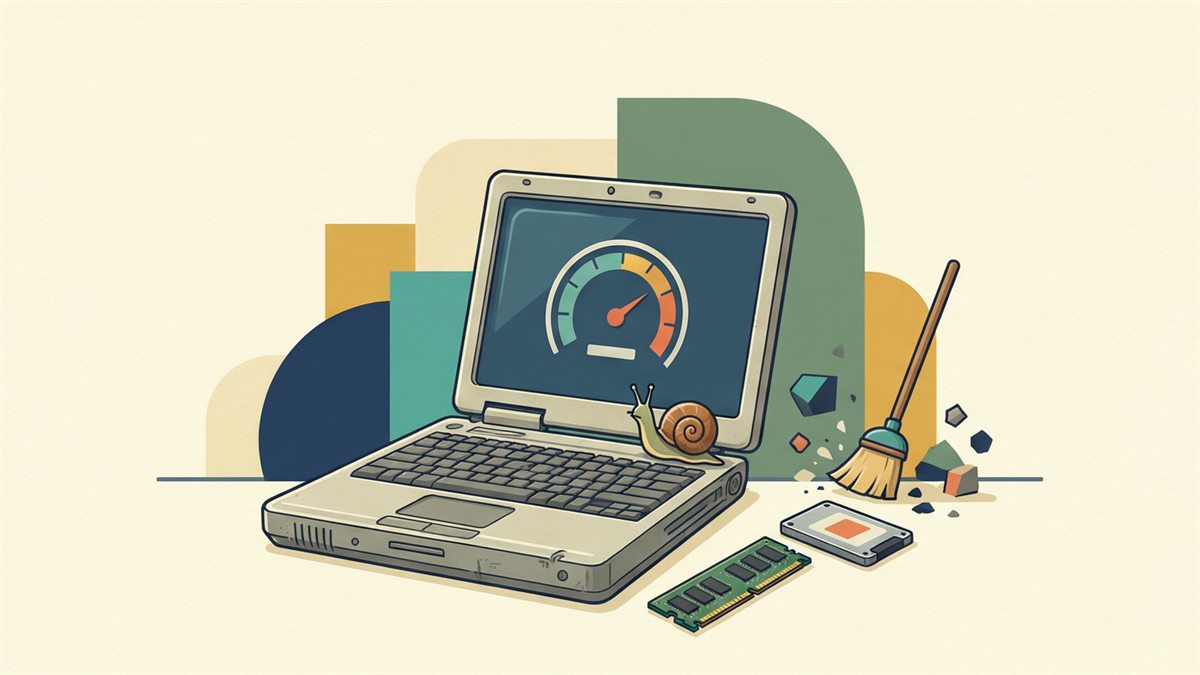
Before you spend money on a new machine, run these. On a laptop that is two to five years old, the same steps routinely cut boot time and browser lag in half — because slowdown is usually software housekeeping, not failing hardware.
1. Cut the startup list
The single biggest perceived speed win. On Windows, open Task Manager → Startup; on macOS, System Settings → Login Items. Disable anything you do not need the second the lid opens. Keep security software and drivers; kill the chat apps, launchers and updaters.
2. Reclaim the drive
A near-full SSD slows dramatically. Free up space until the drive is under about 80% full. Empty the recycle bin, clear temp files, offload photos to cloud, and uninstall programs you have not opened in a year.
3. Tame the browser
Tabs are RAM hogs. Enable the built-in tab sleeping, remove extensions you forgot installing (each one runs in the background), and set the startup page to “open new tab” instead of “restore last session” if you close with 40 tabs.
4. Check thermals
If the fan screams and performance drops after 20 minutes, it is likely throttling from dust and old thermal paste. Compressed air in the vents helps; a paste re-do is a 30-minute job that buys years on some models.
5. Update the right things
Windows Update, graphics driver and firmware. Skip the “driver booster” utilities — they are frequently malware in a costume. Get drivers from the manufacturer’s own site.
6. Power plan reality check
On laptops, set the plan to “Balanced” not “Power saver” when plugged in — the saver mode caps the CPU and makes everything feel sluggish.
7. The two upgrades worth money
If step 2 revealed a spinning hard drive, swapping to an SSD is the best $30 you will spend. If you have 4GB of RAM, more RAM is the second. Everything else is free housekeeping first.
Related reads
How to Fix a Slow Wi-Fi Connection at Home (Before Buying Anything)
The difference between a bad signal and a slow internet line, the router setting and placement changes that recover most speed for free, and when hardware actually helps.

A Backup Plan for Regular People: The 3-2-1 Rule, Set Up in an Hour
Why one copy on one drive is not a backup, how to set up the 3-2-1 approach with tools you already have, and the automated schedule that means you never think about it again.

Private Browsing and Private Search: What Actually Protects You
The honest limits of incognito mode, why it does not hide you from your own network or the sites you visit, and the handful of real changes that do reduce tracking.